.svg)
Create and send a push notification
- In the merchant portal, go to the left navigation pane and select Push Notification.
- To create a new one, select New Notifications in the upper-right corner.
- Select the people you want to receive the notification:
- To select everyone, select the checkbox in the top row next to Name.
- To find specific people, use the search box.
- To narrow your list, select the Filter icon (orange) to filter by points, item category, order history, etc. Select Apply to save your filters.
- After selecting users. click Next from the top-right corner.
- Enter a title and your message.
- Optional: To include a button/link, toggle the Add button to message setting.
Enter the Button text and the URL. Customers can click this button to go to a specific item or promotion. - Optional: To include a graphic, select Add Image.
- Tip: We recommend a 16:9 ratio and a maximum file size of 1 MB.
- Select Next to see a preview of the Push Notification with title, message, and link.
- Select Send notification to finalize and send the Push Notification.
Scheduling Push Notifications (2:59)
Schedule a push notification for later
You can schedule a notification to be sent at a specific date and time.
-
Follow steps 1 through 7 in Create and send a push notification.
-
Turn on the Schedule for later toggle.
-
Choose the date and time you want the notification to be sent.
-
Select Next and review the preview.
-
Select Send notification.
How notifications appear to customers (3:36)
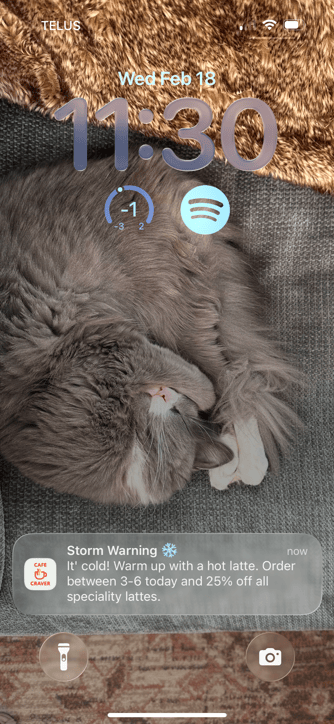
When a notification is sent, customers who have allowed notifications for the app will see it on their mobile devices.
 .
. 
-
The notification appears on the device screen.
-
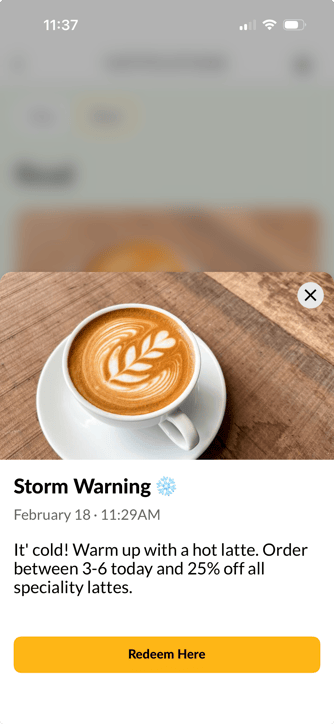
To view the message, the customer can go to Notifications in the app.
-
New messages are indicated by a bubble icon.
-
-
Each notification displays the title, the date it was delivered, and the message body.
-
If you included a button, customers can select it to go directly to the promoted item or information.
Reminding Customers To Allow Notifications
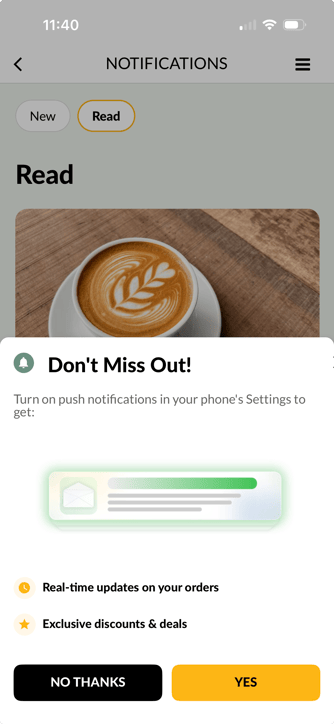 For customers who have push notifications off, the app will occasionally prompt them to update their settings.