.svg)
Merchants Using Square Loyalty:
If you use Square Loyalty, contact our support team to integrate your point-syncing system.
- Email us: support@craverapp.com.
- Note: Reward tiers created in Square must be manually duplicated in the Craver Merchant Portal to be available to your customers.
- Points awarding (how many points earned per dollar spent, bonus points etc) is set up in Square and automatically synced into your app
Create a reward tier
To create a new reward for your customers, follow these steps:
- Sign in to the Merchant Portal.
- On the left navigation pane, go to Rewards.
- Select Add new reward tier in the upper-right corner.
- Choose a Reward type:
- Free item: Allows customers to redeem points for specific menu item.
- Dollar discount: Applies a fixed dollar amount off the entire sale.
- Configure the reward details:
- Photo: Add an optional image for the reward.
- Reward name: Enter a clear name, such as "Free Americano."
- Points: Specify the number of points required to redeem the reward.
- Description: Enter details about what the reward includes.
- For Free item rewards, from the Attached items, specify which products can be redeemed.
- Select Apply changes.
Configure modifiers for free items (1:06)
You can decide if add-on prices for modifiers (like extra shots or syrups) are included in a free item reward:
- To include modifiers: Turn on the Include modifiers toggle. The customer will not be charged for add-ons.
- To charge for modifiers: Turn off the toggle. The customer will be charged the standard price for any add-ons.
Configure dollar discounts (4:00)
When setting up a Dollar discount, keep the following rules in mind:
- Dollar discounts apply to the Entire sale, not specific items.
- The system does not currently support percentage-based discounts.
- Customers can only apply a dollar discount if the cart total is greater than the discount amount. For example, a $5.00 reward cannot be applied to a $4.00 order.
Manage existing rewards
To modify or remove a reward tier, use the (...) menu next to the reward name:
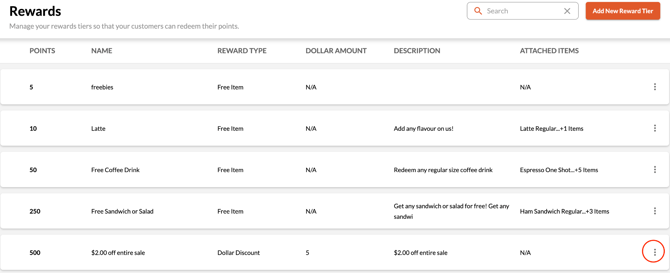
- Edit: Select Edit to update point values, names, or items.
- Delete: Select Delete to permanently remove the reward tier.
Points Awarding
For Square loyalty integration users, how many points a customer earns comes from Square and no set up or update is required in Craver if changes are made.
For Craver Loyalty users, the default configuration is 1 point per dollar spent.
- Points are only given on subtotals, not taxes and fees
- Points are only awarded for whole dollars spend ($12.15 = 12 points)
Can I give bonus points?
-
Bonus app or web sign up points can be configured for Square or Craver loyalty users - contact support for help.
Starting a loyalty program from scratch? This PDF will help you decide what to offer.