.svg)
Access the Portal and Location
-
Go to the URL: admin.craverapp.com and sign in to your Merchant Portal.
-
Select Locations, and then choose the specific location you want to update.
-
Go to Location Hours.
Update Business Hours
-
Under Location Hours, view the Business Hours section.
-
Enable the Closed toggle to set as Closed for the day
-
Enter the opening time and the closing time.
-
If the same hours apply to all days, select the Copy to All option.
-
Select Save to confirm your changes to the business hours.
Update Delivery Hours
-
Go to Delivery Hours section.
-
To match the schedule you just set for Business Hours, select Same as Business Hours.
-
Select Save after adjusting your delivery hours.
What if we close between services during a day? (Watch from 0:47)
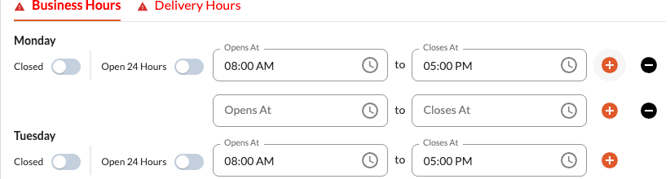
-
Use the orange plus sign to the right of the business hours to add another block of time.
-
Select Save after adjusting.
What if we close after midnight? (Watch from 2:49)
- Identify the day the late-night shift begins.
- Enter the shift's start time.
- Enter 11:59 PM as the end time for that day.
- Identify the following day (the day the shift ends).
- Enter 12:00 AM as the start time.
- Enter the final closing time (e.g., 2:00 AM) as the end time.
- Click Save
Final Step: Apply Changes
-
To ensure all your saved hours are reflected in the app, select Apply changes to update the app.