
Access the Portal and Location
Go to the URL: admin.craverapp.com and sign in to your Merchant Portal.
Select Locations, and then choose the specific location you want to update.
Go to Location Hours.
Update Business Hours
Under Location Hours, view the Business Hours section.
Enable the Closed toggle to set as Closed for the day
Enter the opening time and the closing time.
If the same hours apply to all days, select the Copy to All option.
Select Save to confirm your changes to the business hours.
Update Delivery Hours
Go to Delivery Hours section.
To match the schedule you just set for Business Hours, select Same as Business Hours.
Select Save after adjusting your delivery hours.
What if we close between services during a day? (Watch from 0:47)
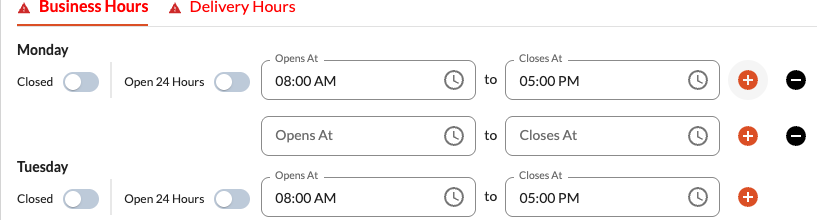
Use the orange plus sign to the right of the business hours to add another block of time.
Select Save after adjusting.
What if we close after midnight? (Watch from 2:49)
- Identify the day the late-night shift begins.
- Enter the shift's start time.
- Enter 11:59 PM as the end time for that day.
- Identify the following day (the day the shift ends).
- Enter 12:00 AM as the start time.
- Enter the final closing time (e.g., 2:00 AM) as the end time.
- Click Save
Final Step: Apply Changes
To ensure all your saved hours are reflected in the app, select Apply changes to update the app.
Comments
0 comments
Please sign in to leave a comment.